



Carregosa Authenticator
Enhanced protection for your banking access
The new authentication app from Banco Carregosa that enhances the security of your online access and transactions. Simple, fast, and secure — everything you need to protect your account.


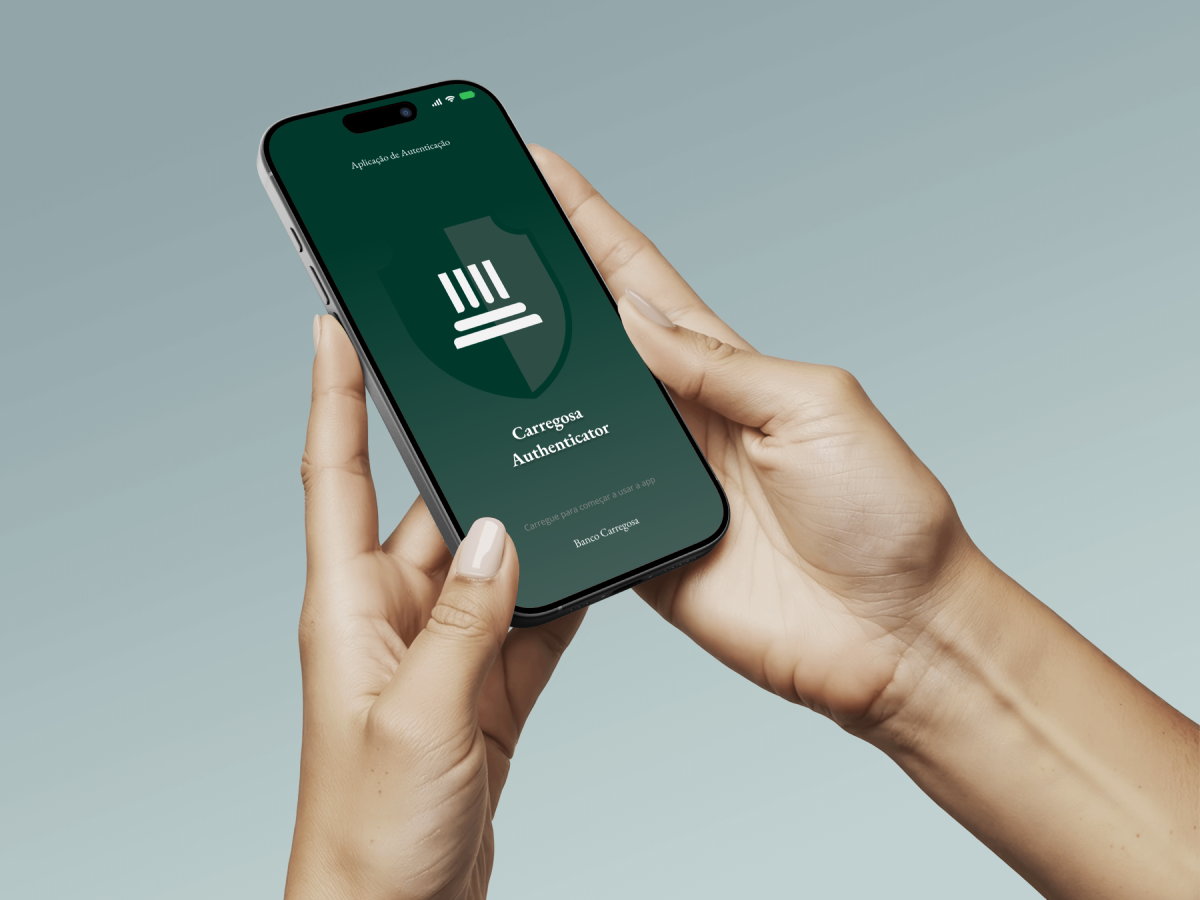

Generation of unique access codes (OTP)
Primary authentication factor, which strengthens and additionally replaces the previous ones (e.g., SMS/token), through a modern and secure application.

Real-time notifications
Sending notifications for real-time approval with information about account movements and activities.

Compliance with European PSD2 regulations
Compliance with European digital security standards (notably the PSD2 Directive).

Continuous protection and easy-to-use experience
Enhanced protection for your banking access to Banco Carregosa's online banking.
*The one-time password (OTP) is a short sequence of alphanumeric characters sent to a user via an application, phone number, or email address as a password that is only valid for a single login session or for a limited period of time.
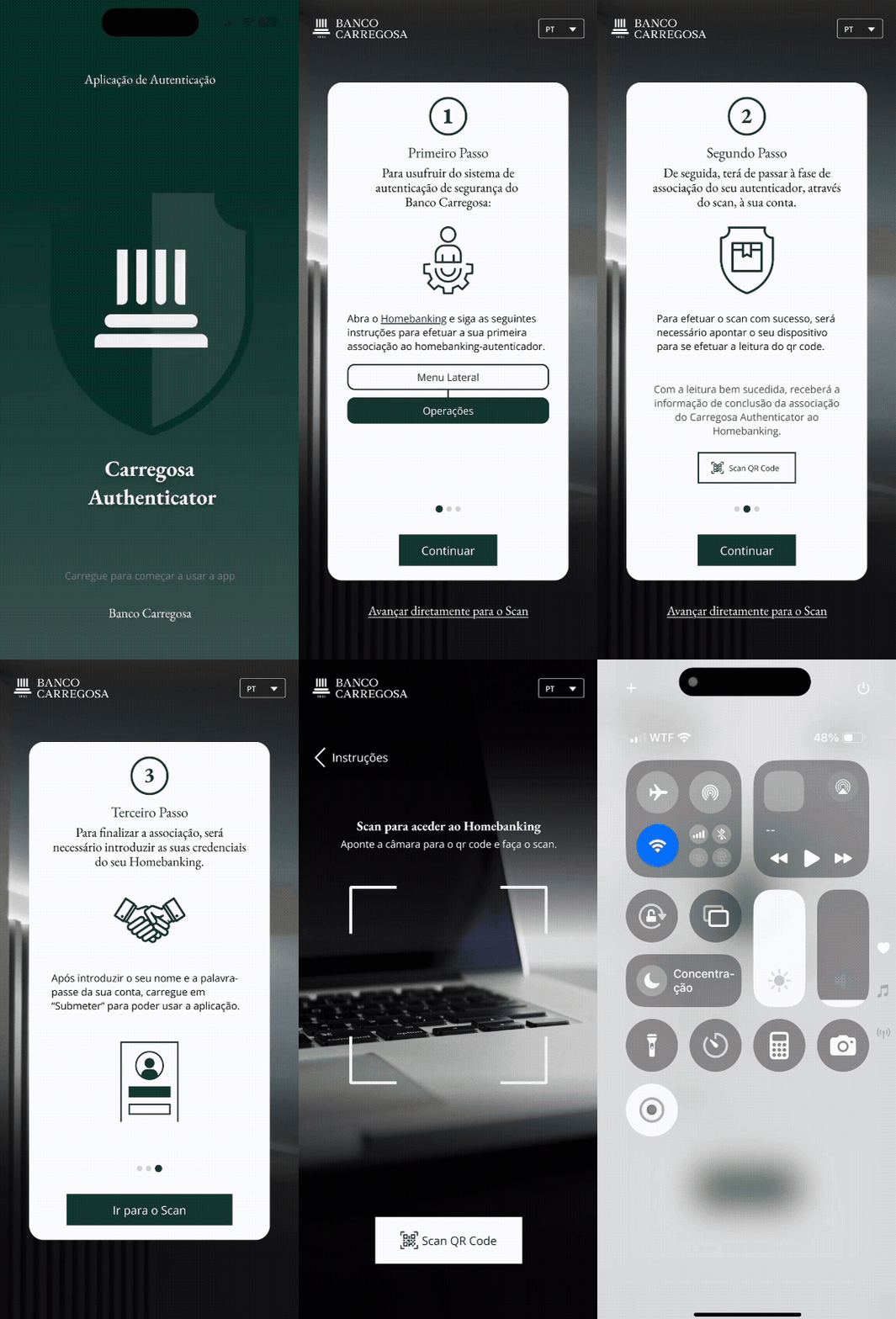
How to get started
Install the App
Download it for free from the App Store or Google Play.Join via Home Banking
Go to Operations > Subscriptions > Carregosa Authenticator.Scan the QR Code
Use the app's built-in reader to link your device.Done!
The app will be linked to your account and ready to validate your transactions
Security in action. Simple, fast, and always with me.
With the Carregosa Authenticator App, control of your account is literally in your hands.
Validate your transactions in seconds, receive instant alerts, and access Homebanking
with complete confidence — all from the same app.
Customer Support Line
Hours: Monday to Friday, from 09:00 to 19:00.
Cost of calling the national fixed network.
Frequently Asked Questions (FAQ)
Como instalar a aplicação?
A aplicação Carregosa Authenticator está disponível para download gratuito na App Store (iOS) e na Google Play (Android).
Como associar a minha conta do Homebanking à aplicação Carregosa Authenticator?
1. Aceda ao Homebanking através da página Web.
2. No menu lateral, selecione “Operações” > “Adesões” > “Carregosa Authenticator”.
3. Com a aplicação já instalada no seu telemóvel, selecione o botão de entrada.
4. Será aberto automaticamente o leitor de QR Code — utilize-o para ler o código apresentado no Homebanking.
Após a leitura, a aplicação ficará automaticamente associada à sua conta e definida como fator principal de autenticação.
Para que serve a aplicação Carregosa Authenticator?
A aplicação Carregosa Authenticator permite-lhe:
· Validar diretamente na aplicação as suas operações bancárias;
· Consultar códigos OTP (One-Time Password) para autenticação no Homebanking ou validação de operações.
Mudei de telemóvel. Como posso associar o novo dispositivo?
1. Aceda ao Homebanking através da página Web.
2. No menu lateral, selecione “Operações” > “Adesões” > “Carregosa Authenticator”.
3. Clique em “Substituir”.
4. Será gerado um novo QR Code — leia-o com o novo dispositivo.
Após este processo, o dispositivo anterior deixa de estar associado à sua conta.
Como posso deixar de utilizar a aplicação como segundo fator de autenticação?
A desassociação da aplicação Carregosa Authenticator pode ser feita no Homebanking ou na própria aplicação.
Desassociação através do Homebanking:
- Aceda ao Homebanking através da página Web.
- No menu lateral, selecione “Operações” > “Adesões” > “Carregosa Authenticator”.
- Clique em "Remover Dispositivo".
- Receberá um email com um link de confirmação.
- Aceda ao link e escolha se pretende confirmar ou cancelar a desassociação.
Após confirmar, a aplicação deixará de estar associada à sua conta e será resposta a configuração de autenticação inicial.
Desassociação através da aplicação Carregosa Authenticator:
- Abra a aplicação e faça login.
- Aceda a Definições.
- Selecione “ID Utilizador”> “Remover associação”.
- Confirme a ação quando solicitado.
Depois de confirmada, a associação é removida e é reposta a configuração de autenticação inicial.
Posso utilizar a aplicação em mais de um dispositivo ao mesmo tempo?
Não. Para garantir a sua segurança, a aplicação só pode estar associada a um único dispositivo.
O que fazer se não receber códigos OTP ou se a aplicação não gerar códigos?
Caso a aplicação não disponibilize o código OTP ou o mesmo não seja recebido por SMS, poderá solicitar o seu envio por email. No momento de autenticação ou de validação da operação, na janela destinada à inserção do código OTP, selecione a seguinte opção para receber o código por email: “Caso pretenda receber o Código de Validação no ***@***.com, por favor clique aqui.”
O que fazer em caso de perda ou furto do telemóvel?
Em caso de perda ou furto do seu telemóvel, poderá desassociá-lo através do Homebanking:
1. Aceda ao Homebanking pela página Web.
2. No menu lateral, selecione “Operações” > “Adesões” > “Carregosa Authenticator”.
3. Clique em “Cancelar” e, em seguida, em “Confirmar Desassociação”.
Como verificar qual dispositivo está atualmente associado à minha conta?
1. Aceda ao Homebanking pela página Web.
2. No menu lateral, selecione “Operações” > “Adesões” > “Carregosa Authenticator”.
Nesta página, poderá consultar qual o dispositivo atualmente associado e a data de adesão.